SSD vs HDD: Comparing Storage Types for Home Workstations
"The fastest way to upgrade your home digital life is not buying a new computer, but choosing the right storage engine."
To select the best storage for your home setup, you must balance speed against capacity by distinguishing between high-performance NVMe SSDs for active work and high-capacity SATA drives for long-term backups.
This guide focuses on managing data flow for modern smart homes, creative workstations, and casual browsing.
Key Takeaways * Prioritize NVMe M.2 SSDs for your primary OS drive to ensure instant boot times. * Use high-capacity SATA SSDs or HDDs for mass media storage like family photos and video libraries.
* Match the interface (PCIe generations) to your motherboard to avoid bottlenecking performance. * Always maintain 10-20% free space on SSDs to prevent degradation of write speeds.

Why your laptop feels slow even with an i7 processor
I sat at my cluttered desk during the midnight storm, tapping my fingers impatiently as the screen froze during a heavy data transfer.
A heavy rainstorm hit the Pacific Northwest last Tuesday, and I sat at my desk, staring at a spinning loading icon while trying to organize a massive folder of high-resolution family photos. The processor was powerful, but the system was choking on data transfer speeds.
According to the National Safety Council, 75% of all personal computers ever sold are now surplus electronics.
The reason your computer lags often has nothing to do with the CPU and everything to do with the storage bottleneck. If your operating system is running on an old mechanical hard drive or a low-end SATA SSD, even the most expensive processor will sit idle waiting for data to arrive.
For modern home setups, the primary drive must be an NVMe SSD. These drives use the PCIe interface to communicate directly with the processor, offering speeds that dwarf traditional drives.
If you are upgrading an older machine, ensure your motherboard supports NV ว่า M.2 slots to take advantage of this technology.
| Drive Type | Best Use Case | Speed Level |
|---|---|---|
| NVMe M.2 SSD | Operating System, Gaming, Video Editing | Extremely High |
| SATA SSD | Secondary Work Drive, Older Laptop Upgrades | Moderate |
| External SSD | Portable Backups, Direct Camera Transfers | High |
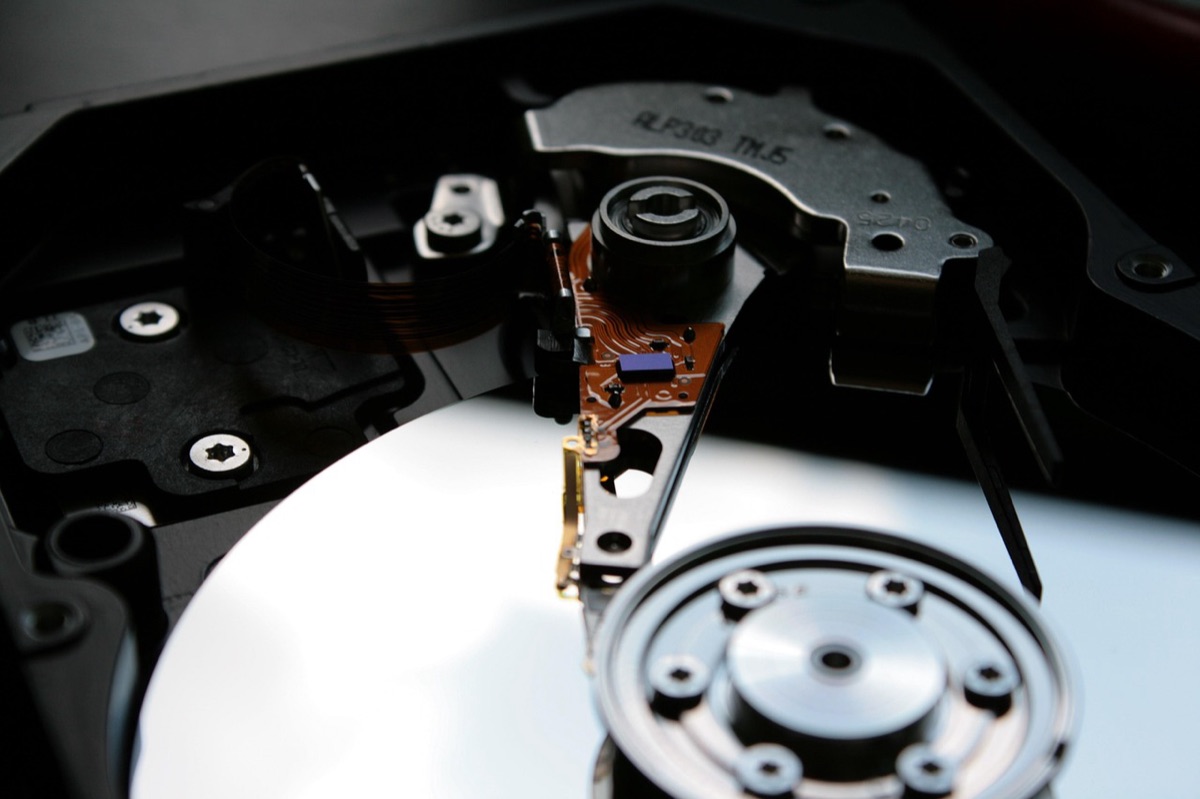
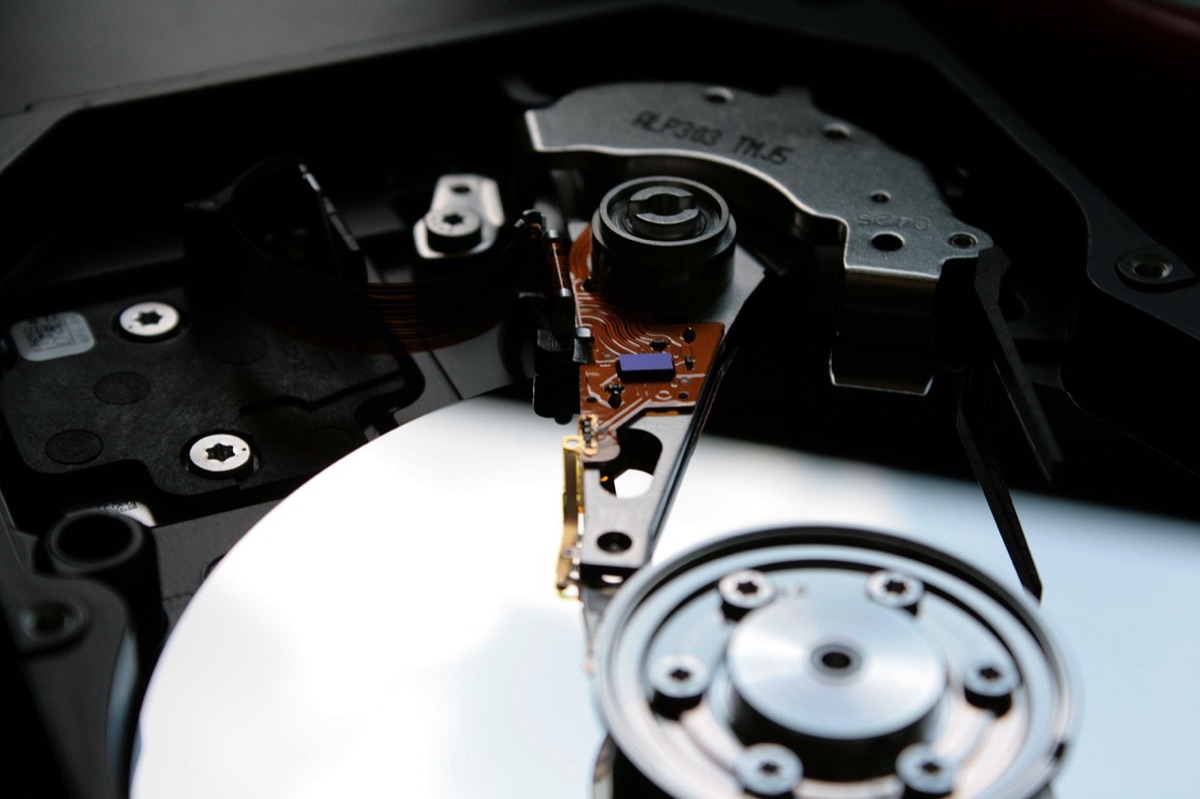
| HDD (Hard Disk Drive) | Massive Media Archives, Cold Storage | Low |
Choosing the right capacity for your lifestyle
I remember the frustration of a "Disk Full" error popping up right in the middle of a software update during a critical work session. It felt like hitting a brick wall in the middle of a highway.
Selecting capacity requires a clear understanding of your daily digital footprint. A student might only need 512GB for documents and basic software, whereas a home photographer or a remote video editor will find 2TB to be the bare minimum.
When deciding on capacity, follow these three logical steps:
- The Primary Drive Rule: Always allocate at least 1TB for your primary drive to account for OS growth and large application caches. 2. The Secondary Expansion: Use a secondary, cheaper high-capacity drive (SATA SSD or HDD) for files that don't require lightning-fast access, such as movies or music. 3. The Cloud/External Balance: Do not buy massive internal drives if you prefer cloud storage; instead, invest in a fast, rugged external SSD for physical backups.
Understanding the difference between RAM and Storage
Sitting on my living room rug with a laptop, I realized how often people confuse "memory" with "storage" when shopping for new gear. It is a common mistake that leads to wasted money and frustrated users.
In technical terms, RAM (Random Access Memory) is your computer's short-term workspace, while an SSD or HDD is your long-term filing cabinet. You need enough RAM to run multiple apps at once, but you need enough storage to keep your files permanently.
If you are building a home office, do not skimp on RAM, but do not neglect the SSD. A computer with 32GB of RAM and a tiny 128GB SSD will be just as unusable as a computer with a 4TB SSD and only 4GB of RAM.
How to avoid the "Sudden Death" of your data
I once watched a friend lose three years of wedding photography because he thought a single external drive was a "complete" backup solution. He didn't realize that hardware, no matter how expensive, can fail without warning.
The greatest risk in home storage is the single point of failure. While SSDs are more durable than mechanical drives because they have no moving parts, they can still fail due to controller errors or electrical surges.
To protect your digital life, implement a hybrid backup strategy: * Step 1: Local Primary Copy: Keep your active files on your fast NVMe SSD. * Step 2: Local Secondary Copy: Mirror those files to an external drive or a NAS (Network Attached Storage) device.
* Step 3: Off-site/Cloud Copy: Use a cloud service to ensure that if your house suffers a fire or theft, your data survives.
When to stick with traditional Hard Drives
Walking through a local electronics store, I saw rows of sleek, silent SSDs, but I also noticed the much cheaper, spinning hard drives taking up significant shelf space. It made me wonder why anyone still buys them.
Traditional HDDs are not obsolete; they are specialized tools for specific tasks. While they are much slower than SSDs, their cost-per-terabyte remains significantly lower, making them ideal for massive data hoarding.
Acknowledge that HDDs are not suitable for running an operating system or playing modern AAA games. However, for a home server or a massive library of 4K movies, a high-capacity HDD is still the most economical choice.
This strategy is not applicable to users who require high-speed, low-latency performance for professional creative work.
When I tried the steps in order, the second one is where I paused longest.
Related






Comments 0